
Discord bot setup
Print Handy talks to you through a Discord bot you own. Use this page for the standalone bot; Hermes users can follow the Discord application steps, then use Hermes installation. Allow about 15 minutes after installing Print Handy and its Python requirements. Start in the repository root with the installation's Python environment activated. For installation itself, use the standalone bot or Docker.
The wiki setup entry links here: this versioned page is the authoritative guide.
1. Create the bot
- Open https://discord.com/developers/applications and click New Application. Name it (for example "Print Handy").
- On General Information, copy the Application ID. You need it for the invite link.
- Open Bot, click Reset Token, and copy the token. Treat it like a password: anyone with it controls the bot.
- Still on Bot, under Privileged Gateway Intents, turn on MESSAGE CONTENT. Print Handy reads the messages in its channel. It does not need the Server Members or Presence intents.
2. Invite it to your server
Replace <APPLICATION_ID> and open the link:
https://discord.com/oauth2/authorize?client_id=<APPLICATION_ID>&scope=bot+applications.commands&permissions=274878024704The scopes are bot and applications.commands (slash commands). The permission number is exactly these, nothing more:
| Permission | Why |
|---|---|
| View Channels | See the print channel |
| Send Messages | Replies and status |
| Send Messages in Threads | Replies inside print threads |
| Embed Links | Status cards |
| Attach Files | Previews, G-code and timelapse videos |
| Read Message History | Follow the conversation and approvals |
3. Copy the IDs
- In Discord, open User Settings > Advanced and turn on Developer Mode.
- Right-click the print channel and choose Copy Channel ID.
- Right-click your own name and choose Copy User ID. Repeat for anyone else allowed to print.
4. Give them to Print Handy
The setup wizard asks for the channel ID, the user IDs and the token. The token is typed hidden and saved only to the data folder's .env file (mode 600); it is never printed or written to config/local.yaml.
Doing it by hand instead:
- Standalone: put
DISCORD_BOT_TOKEN=...in~/.local/share/print-handy/.env(or yourpaths.hermes_home), and setdiscord.chat_idinconfig/local.yaml(discord.allowed_user_idsis optional; see Who can use the bot). See standalone bot. - Hermes: put
DISCORD_BOT_TOKEN,DISCORD_ALLOWED_USERSandDISCORD_HOME_CHANNELin~/.hermes/profiles/<profile>/.env. See Hermes installation.
Use one bot token for one mode. Running the standalone bot and a Hermes profile on the same token makes both answer, or neither. Stop the old owner before starting the new one; see moving from Hermes. More generally: one token, one instance per channel. Two running instances that serve the same print channel (a leftover Hermes profile next to the container is the classic case) each receive every message in it and both act, which looks exactly like random bot misbehaviour. Sharing one token across instances is supported only with a separate channel per instance — see multi-instance. The standalone bot logs a warning when Discord hands it a second READY on a live session, one sign of a competing login.
Standalone configuration
The installer creates the configuration. For a manual install, edit config/local.yaml:
bot:
  mode: standalone
  sync_commands: true
  health_port: 0
paths:
  hermes_home: ~/.local/share/print-handy
discord:
  chat_id: "123456789012345678"             # replace with your channel ID
  allowed_user_ids: ""                      # optional whitelist; empty lets everyone in the channel use the bot
  token_env: DISCORD_BOT_TOKEN
These IDs are placeholders, not usable setup values. paths.hermes_home is the data directory; its name is historical and does not require Hermes. Keep the printer-specific configuration created by the installer. This example only shows the Discord fields.
Store the real token in that data directory's .env using a local editor, not a shell command that leaves the token in history. Restrict access with chmod 600 ~/.local/share/print-handy/.env. Do not paste tokens into Discord, issue reports or screenshots. Reset an exposed token in the Developer Portal and replace it locally. Never commit .env or config/local.yaml.
| Setting | Meaning |
|---|---|
discord.chat_id | Only this channel and its threads are served |
discord.allowed_user_ids | Optional whitelist: numeric user IDs separated by commas or spaces. Empty (the default) lets everyone in the print channel use the bot |
discord.denied_user_ids | Optional deny list: numeric user IDs separated by commas or spaces. A denied user is refused even when whitelisted or the approval user |
discord.approval_user_id | Optional approval user: always allowed to act; setting one does not restrict anyone else |
discord.token_env | Environment variable name holding the secret, not the token itself |
discord.bot_name | Name in replies; does not change the Discord account name |
bot.mode | standalone (the default); set hermes only for a Hermes-hosted install |
bot.sync_commands | Register slash commands at startup; default true |
bot.health_port | Default 0: no HTTP listener; leave disabled for this setup |
bot.health_stale_s | Heartbeat freshness limit; default 120 seconds |
All settings support PRINT_HANDY__SECTION__KEY process-environment overrides, for example PRINT_HANDY__BOT__MODE=standalone and PRINT_HANDY__DISCORD__ALLOWED_USER_IDS="234567890123456789 345678901234567890". The actual token still comes from the variable named by token_env (default DISCORD_BOT_TOKEN), not a discord.token field. PRINT_HANDY_CONFIG selects an explicit configuration file. See settings and optional LLM/logging fields and configuration load order. Leave llm.chat_url empty for command-list replies with no LLM — or, when [llm] is set up for /print-design, set discord.chat_llm_enabled to false (or PRINT_HANDY__DISCORD__CHAT_LLM_ENABLED=false) to run Discord with no chat LLM while design keeps its endpoint; bot check names the switch on its llm row. See Running Discord with no chat LLM. Separate from that chat LLM, the print-started post carries the one-line roast whenever an LLM/vision endpoint is configured (services.vision_chat_url plus CLIPROXY_API_KEY): vision.roast_enabled is on by default, and setting it false (or PRINT_HANDY__VISION__ROAST_ENABLED=false) turns roasts off. See The roast.
Who can use the bot
By default, the print channel is the access boundary: anyone who can post in discord.chat_id can use the bot, and channel participants share the channel's session. No user list is required, and the startup log says so (access: channel (everyone)). Two opt-in lists refine that default:
discord.allowed_user_ids— a whitelist. When set, only the listed users (plus the approval user) can use the bot; the startup log readsaccess: whitelist (N users).discord.denied_user_ids— a deny list. A denied user is refused in every mode, even when whitelisted or the approval user.
A refusal is never silent: the bot logs the user ID and the reason at INFO and posts one short notice in the channel per user per hour ("You are not on this bot's allowed list."). Approvals stay separate: discord.approval_user_id names who may approve prints and is always allowed to act, but setting one never restricts anyone else, and widening intake does not widen the live camera's own allowlist (approval_user_id plus allowed_user_ids, as before).
In Hermes mode the same model applies through the Hermes profile: the profile serves its configured channels, participants share the channel session, and per-user restriction is the gateway's own DISCORD_ALLOWED_USERS (see the Hermes install docs) — the standalone [discord] lists are not consulted there.
5. Verify offline before connecting
Run in the repository root using the Python environment from installation:
python3 -m print_handy.bot checkThis does not log into Discord or contact a printer. It checks mode, token presence (not validity), channel, allowed users, discord.py, loaded handlers, absence of Hermes modules and writable state. It creates the state directory and briefly writes a probe file there. Expect exit 0 and ok lines; resolve each FAIL before proceeding. A valid configuration is not proof the token can log in. Do not use python3 -m print_handy.doctor as this offline check: doctor can contact configured services.
6. First launch and health
Once the offline check passes, deliberately connect the bot to Discord:
python3 -m print_handy.bot runKeep the printer listener stopped during this first check. As an allowed user in the configured channel, send /print-help or plain hello with the optional LLM disabled. Expect the command list for /print-help, and the short “didn't understand” reply for hello; neither starts a print. Do not send model links, files or printer-control commands for verification. A stranger or a message in another channel is ignored.
In a second terminal using the same environment and configuration:
python3 -m print_handy.bot healthExpect exit 0 with ok standalone bot: connected as .... This reads the local heartbeat and process identity, not the printer. It checks a live, connected process and freshness, not printer readiness. Stop a foreground bot with Ctrl+C. Do not run a second copy alongside a service. For user services, scripts/install-standalone.sh renders units but enables nothing; review its printed instructions in standalone systemd setup before enabling services.
7. Live camera Activity (optional, #311)
Print Handy can show the printer camera live inside a Discord voice channel. The bot itself cannot send video — Discord's bot API is audio-only — so the live view is an Activity: a small web page that runs inside the voice channel, served by the same Discord application as the bot (no second bot, no second token). The page plays the container's go2rtc restream of the camera (MSE over WebSocket, proxied by the Activity server itself, so go2rtc stays on loopback and is never exposed raw).
Honest status — read this first. The Stage 0 live Discord spike has not run yet: everything below is built and covered by offline contract tests, but none of it has been exercised live against Discord, a real tunnel or a real camera. Portal screens and labels may differ from the current Developer Portal. Treat the feature as unverified until the live sitting happens and its result is recorded on issue #311. The bot-token-only rule is absolute: if any step ever seems to need a user token or a selfbot library, stop — that path is a no-go by design, not a workaround.
What you set up, in order
Four pieces, in four places. Nothing here is automatic: creating the Discord application changes, the tunnel and its credentials are operator steps (they are listed as manual follow-ups on the #311 stage 4 PR), and Print Handy only consumes the results.
1. A private voice channel. Create (or pick) a voice channel limited to your household — the camera can see your home, so this channel is the privacy boundary. Note its ID (Developer Mode on, right-click → Copy Channel ID) for [live_stream] voice_channel_id. Server members need the Use Embedded Activities permission in that channel to launch the Activity. /print-live only ever names this one channel.
2. The Developer Portal (the same application as the bot).
- Open the application → Activities → enable Activities for the app.
- OAuth2 → General: note the Client ID (the application ID) and generate/copy the Client Secret. The secret goes only into the deployment environment (
DISCORD_CLIENT_SECRET, next step) — never into a settings file, a screenshot or a chat. - Activities → URL Mappings: map the root prefix
/to your tunnel hostname (step 3), for exampleph-live.example.com. One mapping is enough: the page, its sign-in endpoint and the feed all live behind the same origin, and the Activity server proxies the feed to go2rtc itself. - The bot needs no new token and no new invite for this; the Activity runs under the same application the bot already belongs to.
3. A named Cloudflare Tunnel. Quick tunnels change hostname on every start and are for experiments only; the product setup is a named tunnel on a domain whose DNS is on Cloudflare, so the hostname survives restarts:
- In the Cloudflare dashboard (Zero Trust → Networks → Tunnels), create a tunnel and note its token — a credential, handled like the bot token: environment only (
TUNNEL_TOKEN), never a settings value, never in logs or screenshots. - Add a public hostname for the tunnel (the same hostname you mapped in step 2) with its service pointed at the Activity server on loopback:
http://127.0.0.1:<live port>(8091in the examples —[live_stream] port, which the Unraid template pre-fills). - Run the connector beside Print Handy: with Compose, the profiled sidecar does it (
docker compose --profile live-stream up -d, withCLOUDFLARED_IMAGEset to a tested connector image); on Unraid, run a separatecloudflaredcontainer with the same token. If the tunnel is down, only the live view is unreachable — the bot and prints are unaffected. Set[live_stream] activity_originto the hostname's https origin, for examplehttps://ph-live.example.com.
4. The deployment settings and secrets. In the Web UI's Live camera (Discord) group, a config file, or environment variables (all of them are in SETTINGS.md):
| Piece | Where it goes |
|---|---|
live_stream.enabled = true | settings |
live_stream.voice_channel_id | settings — the private channel from step 1 |
live_stream.activity_origin | settings — the tunnel's https origin from step 3 |
live_stream.port | settings — the loopback port from step 3 (8091 in the examples) |
DISCORD_CLIENT_ID | environment — the application ID from step 2 (a plain identifier, not a secret) |
DISCORD_CLIENT_SECRET | environment, secret — from step 2 |
LIVE_STREAM_SESSION_SECRET | environment, secret — a long random value you generate; it signs the Activity sessions |
TUNNEL_TOKEN | .env only — read by the cloudflared sidecar, never by Print Handy |
Restart the container after changing them: settings are read once at start. The supervisor starts the Activity server only when all of them are present (the live gate's report, mirrored in the container healthcheck, names whatever is missing); enabled but incomplete is a healthy, reported state, not a crash.
The allowlist: who may watch
Signing in is checked server-side, never trusted from the page: the Activity hands the server a one-time code, the server exchanges it with Discord itself, reads your Discord user ID from Discord, and admits only IDs on the allowlist — the same users the bot already trusts: [discord] approval_user_id plus allowed_user_ids. Anyone else gets a plain refusal, and a leaked Activity URL without a signed-in session serves nothing: the page and the feed both require the session the sign-in sets. Keep allowed_user_ids to your household, exactly as you would for print approvals.
Using it
/print-live startopens the viewing session and posts the pointer: join the configured voice channel and launch the Print Handy activity from its activity shelf./print-live stopends it;/print-live statusreports it.- With
live_stream.auto_start_on_print = true(off by default), a print start opens the session and posts the pointer automatically, and the session ends when that print ends. - A session with nobody watching ends itself after
live_stream.empty_timeout_s(default 300 s): viewer presence is counted from authenticated page loads, and leaving the Activity notes the leave. Enforcement happens as the session is touched — a/print-livecommand, a print transition, or the Activity server's own periodic check while it runs — there is no other background timer to know about. - The bot joins no voice channel and captures no audio; it is never "in the call". Its presence signal is the session itself: when a session is live, the feed is available to allowlisted viewers in that one channel.
Privacy notes
- The configured private channel only — the feature names no other channel, ever.
- Nothing is recorded or archived: the feed is pass-through, and stopping the session (or the print ending, or the empty timeout) ends it.
- go2rtc and the Activity server bind loopback inside the deployment; the only public surface is the tunnel hostname, behind the allowlist sign-in. Camera credentials stay between Print Handy, go2rtc (loopback) and the camera on your LAN, redacted in logs as everywhere else in Print Handy.
- One bot serves one printer's camera per instance (the multi-instance rule): a second printer is a second Print Handy instance with its own channel, tunnel hostname and settings.
Support and verification matrix
| Piece | Status |
|---|---|
| Moonraker cameras (incl. Fluidd/Mainsail households — the same Moonraker webcam registry) | Source resolution proven offline (webcams-API fixtures, derived-URL fallback); not live-verified |
| OctoPrint cameras | Source resolution proven offline (settings fixtures); not live-verified |
| Snapshot-only cameras | Valid live source of kind snapshot (still-image sequence, labelled as such); not live-verified |
| Bambu / Prusa / SDCP / stock-Flashforge cameras | Not in v1 — they join through the same camera-source seam once their stills/stream sources are verified (see #294/#295) |
| Encoder plan (VAAPI / QSV / NVENC / CPU) | Command construction pinned by offline tests per vendor; no GPU path verified on real hardware |
| The Activity in Discord (desktop / mobile) | Unverified — the Stage 0 live spike has not run; the first live result belongs on issue #311, not in this table's wording |
What a print looks like in Discord
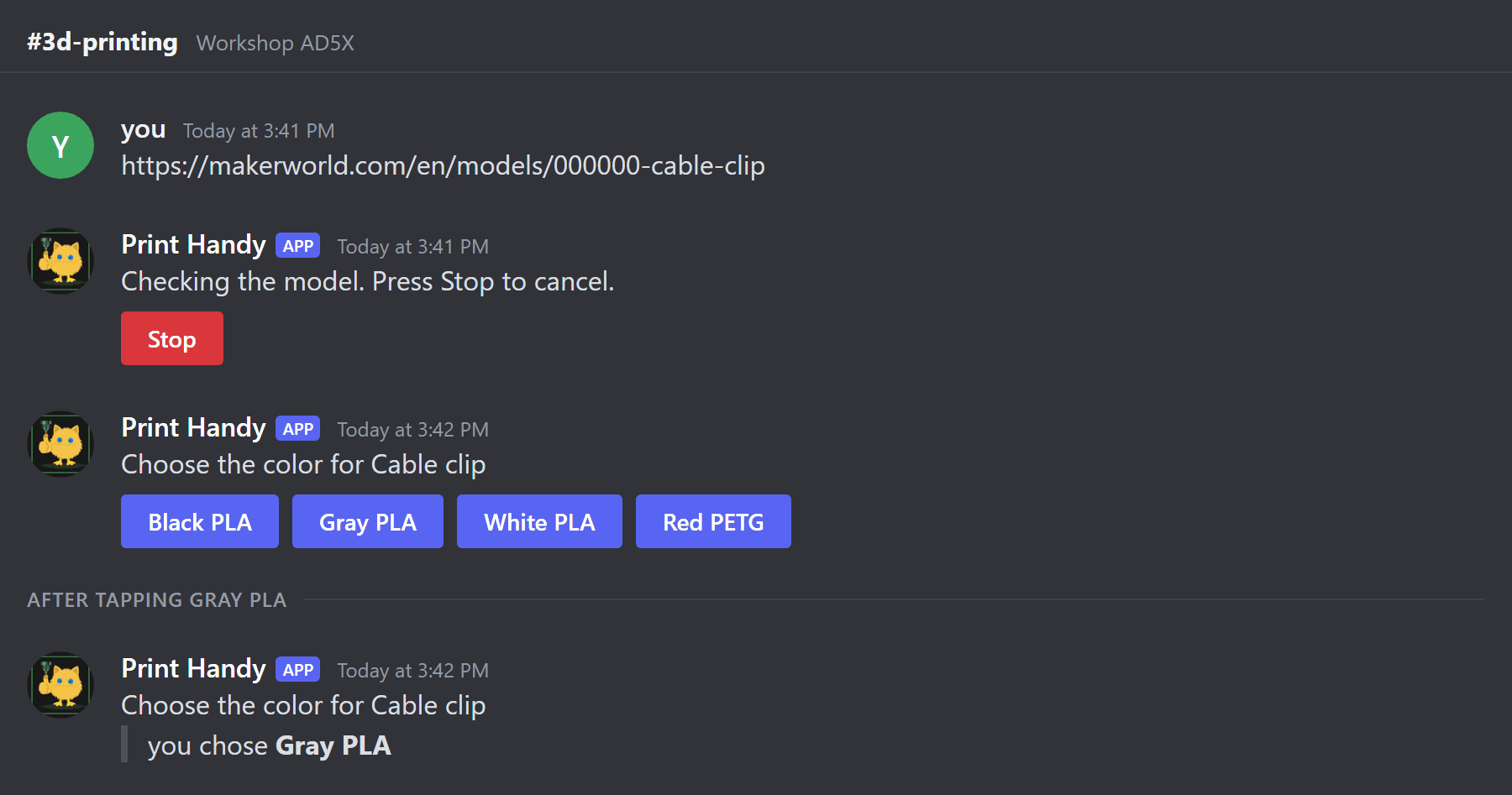
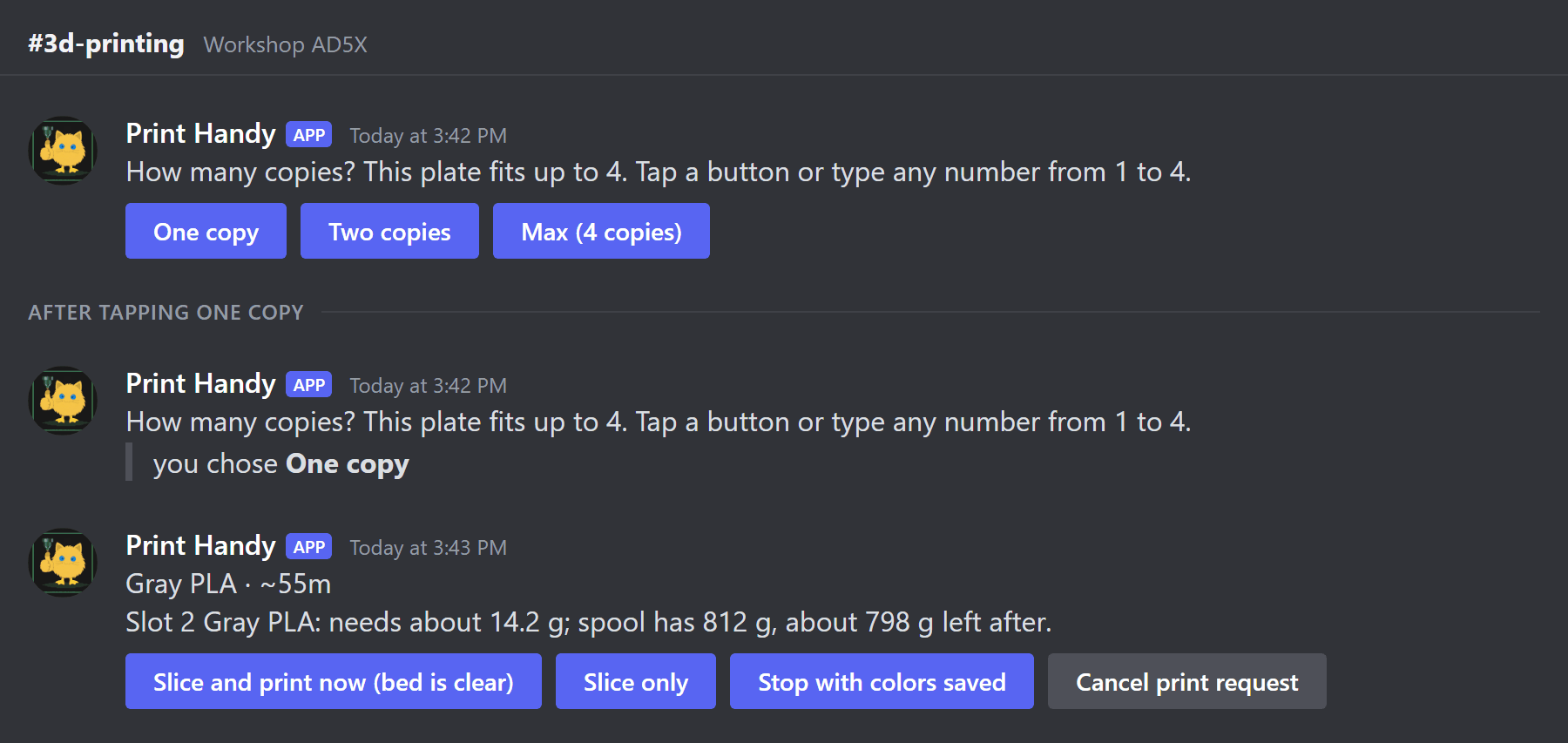
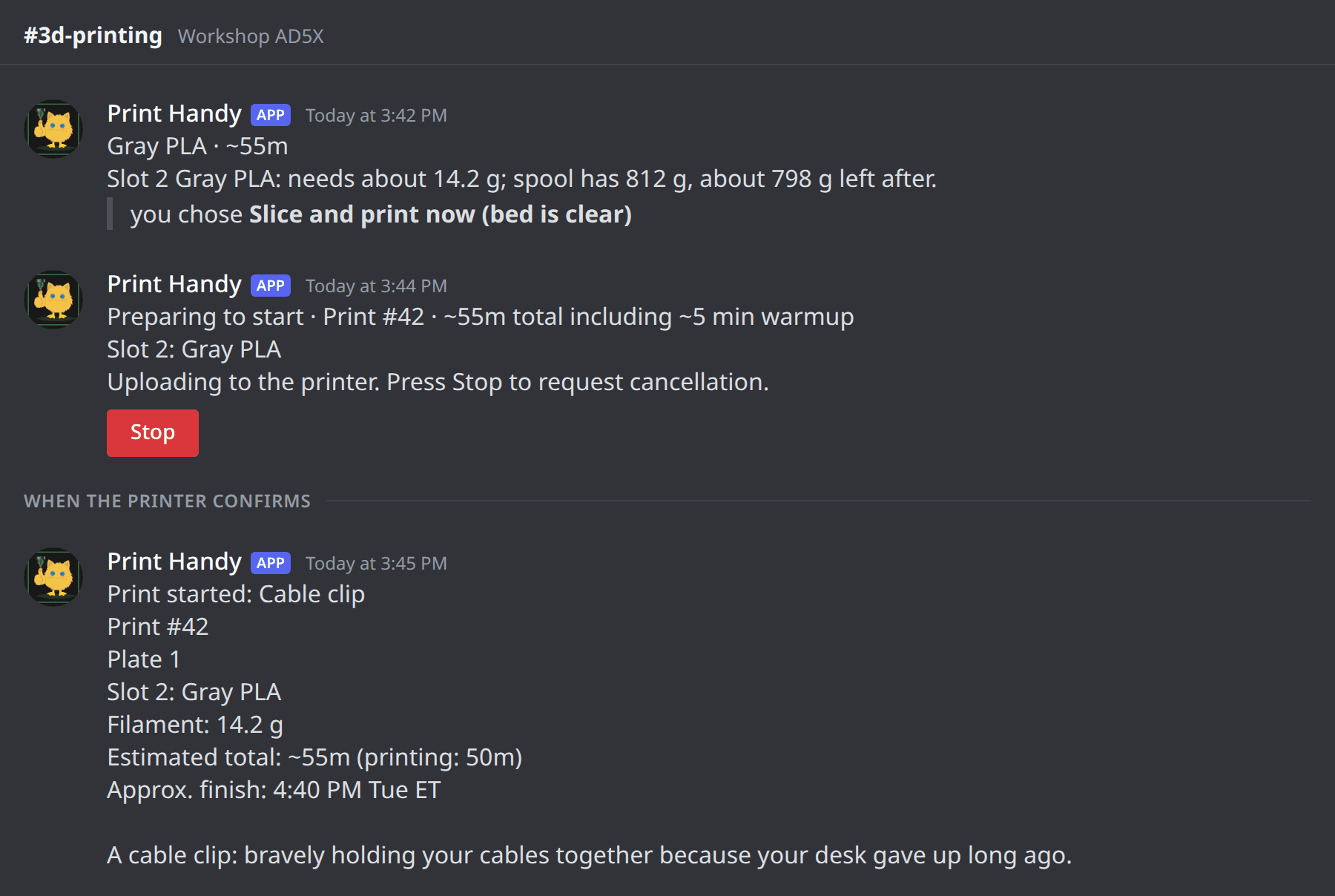
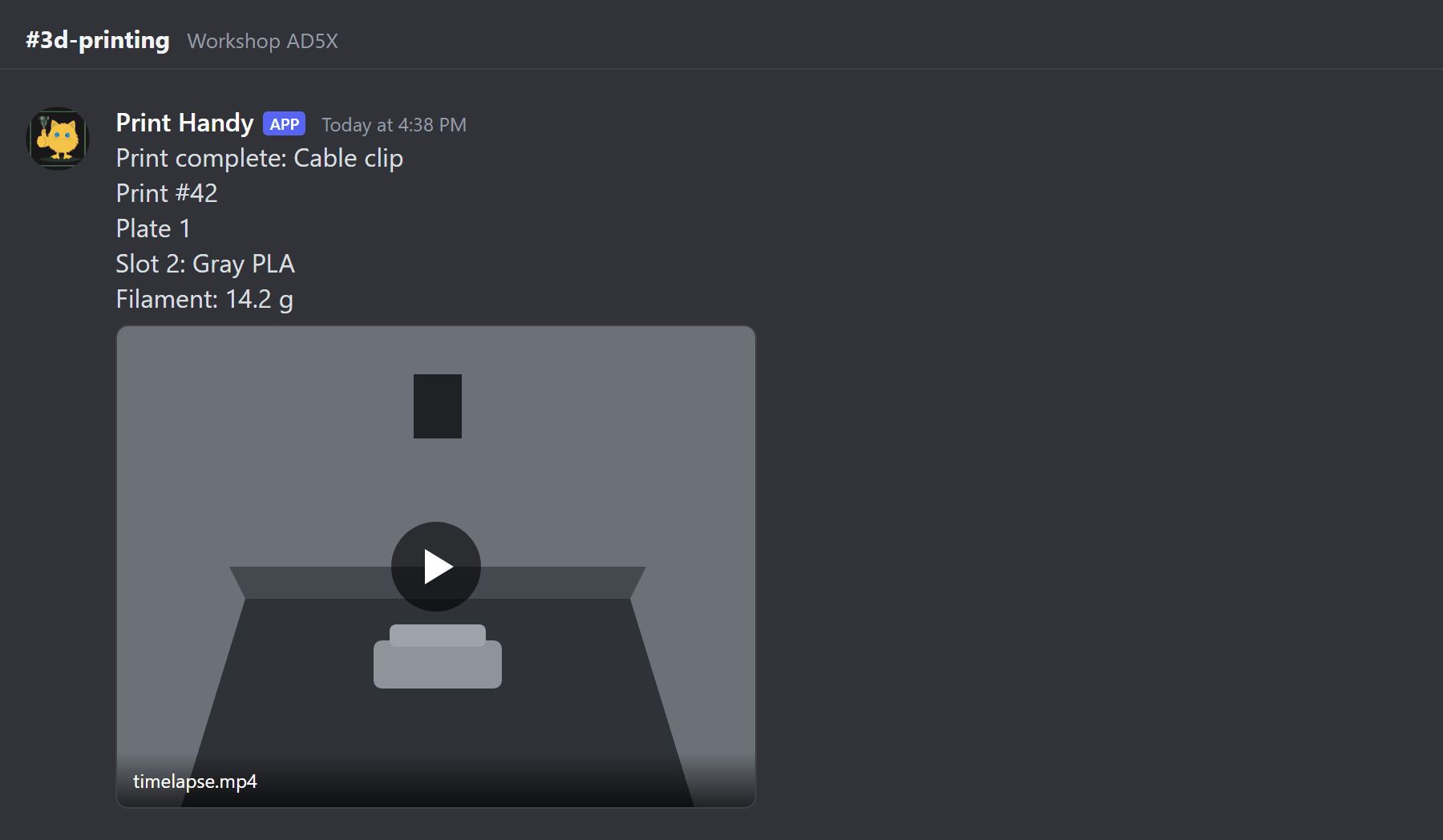
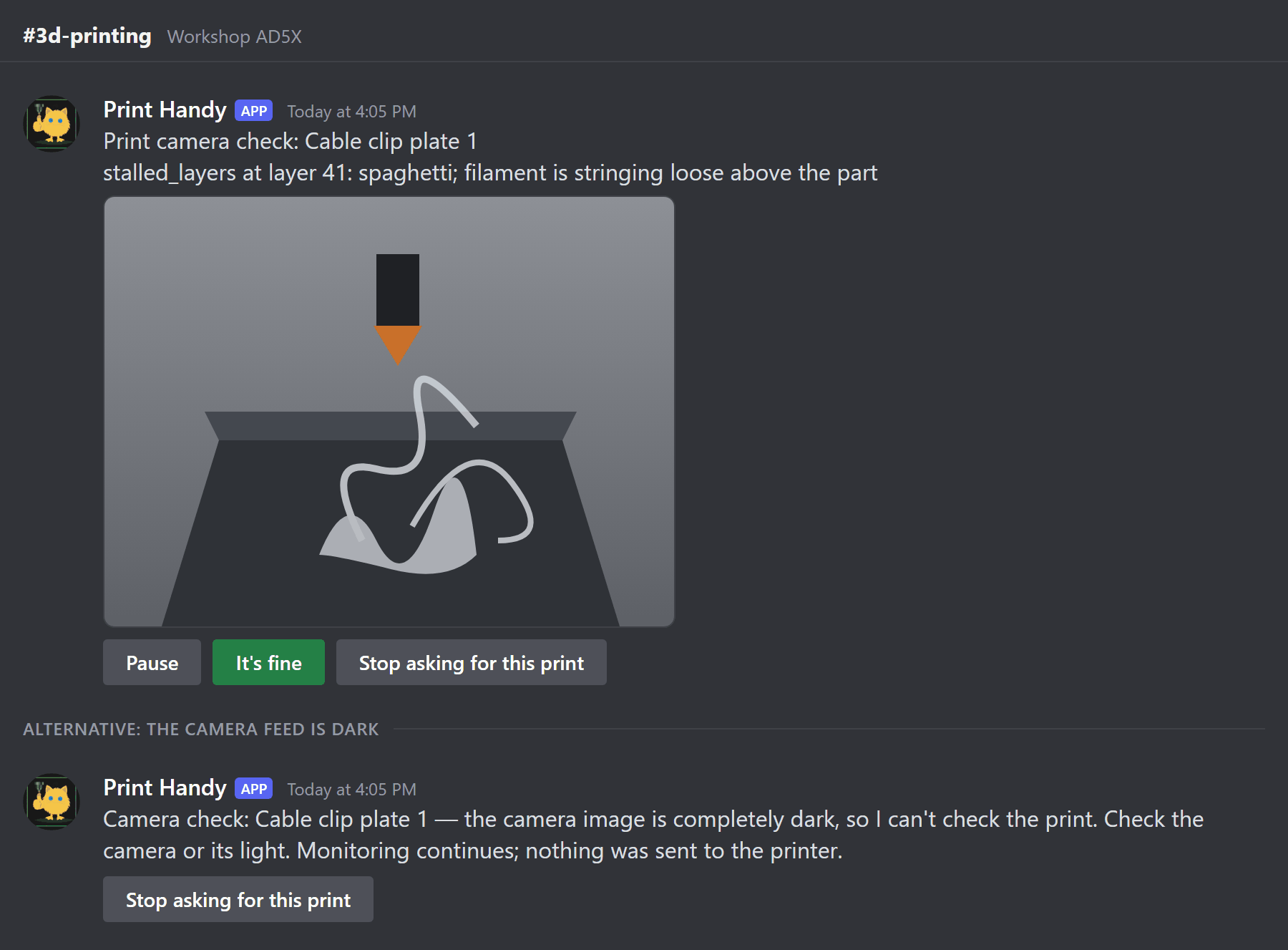
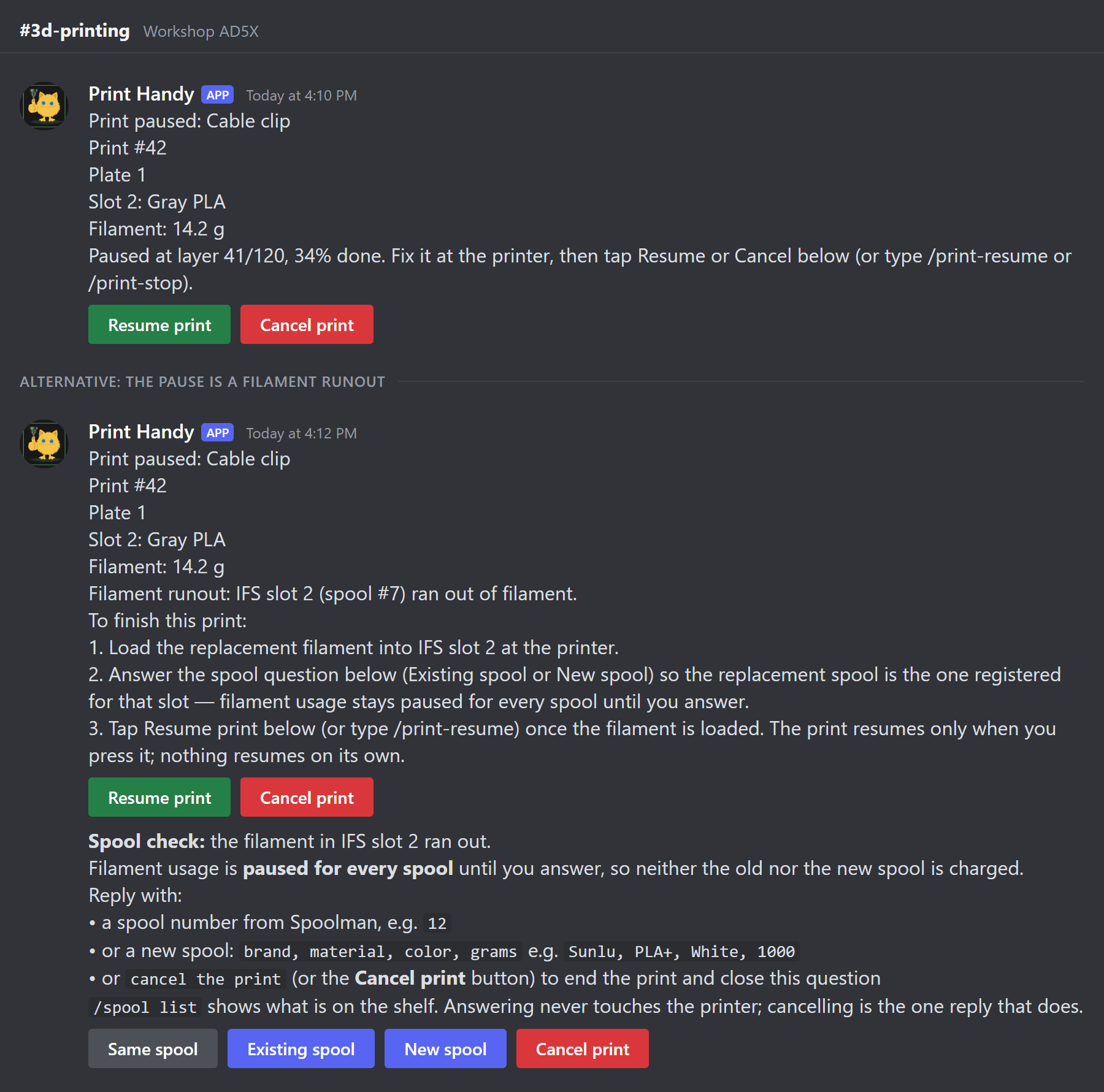
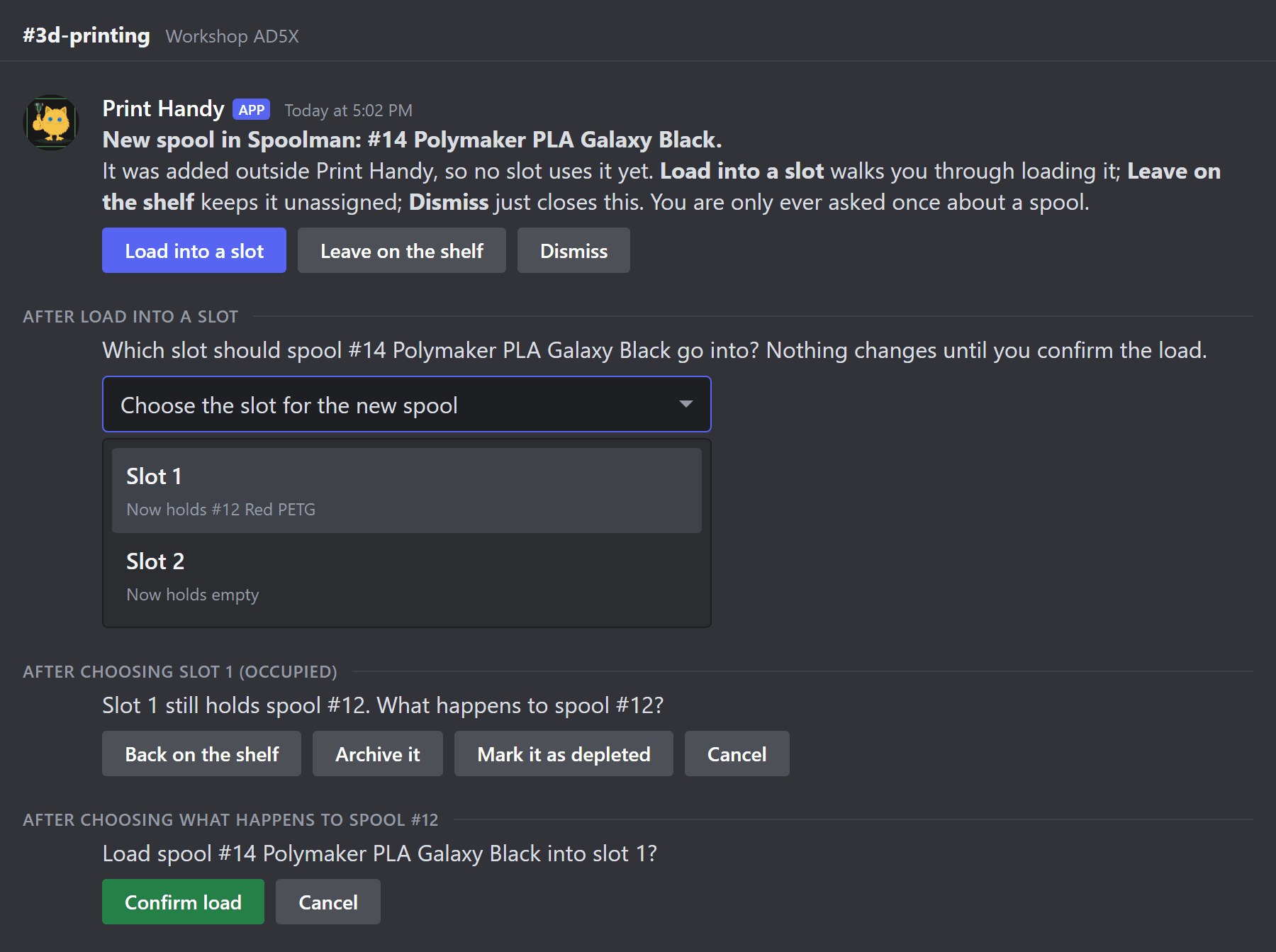
Once the bot is running, this is the whole conversation for one print. Every step has buttons; typing the answer works too. These are mockups built from the bot's real message text and buttons, with placeholder names.
Share a link and pick colors.
Choose copies and confirm. Nothing is sent to the printer until you tap a start button.
The print starts.
It finishes, with a timelapse when capture is on.
The camera watchdog only alerts; every printer action is your tap.
Pause and filament runout. The spool question always has a Cancel print button.
A spool added directly in Spoolman gets a one-time prompt to load it.
Recovery
| Symptom | Safe next step |
|---|---|
check reports mode, channel or allowed users FAIL | Correct the named YAML field or environment override; rerun check. IDs must be numeric, not names |
| Token missing or Discord refuses login | Check token_env, the data-directory .env and service environment; reset/re-enter a rejected token locally. Never include its value in logs or reports |
| Privileged intents error or typed messages ignored | Enable Message Content Intent on the Developer Portal's Bot page; restart the bot deliberately |
| Bot online but no replies / missing permissions | Confirm channel and user IDs, then check channel overrides for View Channel, Send Messages and Read Message History; check Attach Files/Embed Links for attachments |
| Slash commands absent | Confirm applications.commands invite scope and bot.sync_commands: true; inspect startup errors. Allow Discord time to propagate; typed /print-help can test routing meanwhile |
| Login/connectivity errors | The standalone Discord bot retries transient DNS/connection failures at startup up to 5 attempts over roughly 2–3 minutes (watch for DISCORD_STARTUP_RETRY lines). If it still exits, inspect those log lines for the DNS, TLS or Discord availability error and resolve the reported cause; do not disable TLS checks or expose a new port |
| Health fails | Start with its reason: no heartbeat, stale heartbeat, disconnected, or replaced process. Check that both terminals/services use the same config and data directory |
| Duplicate replies | Stop the extra standalone process or Hermes gateway using that token. Keep exactly one owner |
Startup logs go to stderr by default; optional logging settings are in standalone settings. Review and redact logs locally before sharing: diagnostic output can contain paths, channel IDs and service URLs. In Discord, /print-handy setup runs a guided, resumable setup checklist and /print-handy debugging runs read-only, redacted diagnostics; see guided setup and debugging. The CLI checks above remain the offline and machine-level routes. After a restart, intake questions held in memory must be restarted by resending the model; do not treat old buttons as authorization. Listener alerts have separate persistent-button support.